Tested 11 November 2026 in a signed-in ChatGPT account, with screenshots from OpenAI’s Business Hub and steps checked against OpenAI’s official setup guide. No sponsored content, and no claim was submitted — we stopped at the verification screen.
Short answer: Yes — you can now claim your business in ChatGPT. OpenAI launched Businesses in ChatGPT in beta on 10 November 2026. Go to Business Hub at chatgpt.com/business-hub, search for your business, verify ownership by business phone, business email, website domain, or Shopify, wait for OpenAI’s email review decision, then complete Persona identity verification to get the blue check. You need a ChatGPT account and a website, but no ChatGPT Plus subscription, no Ads account, and no Enterprise agreement. OpenAI has published no price for claiming — outlets report it is free at launch, but that is reported, not stated by OpenAI.
Until yesterday, the honest answer to “how do I claim my business in ChatGPT?” was that there was no way to do it — no listing form, no dashboard, nothing to claim. That changed on 10 November 2026, when OpenAI opened Business Hub in beta. Guides written before that date are now wrong, and several still ranking in the top 10 say the claim flow does not exist. This guide is the corrected version: every step below was tested the day after launch, with screenshots of the actual screens, and every claim is traced to an official OpenAI page or flagged as reported by someone else.
What claiming your business in ChatGPT actually does
Claiming gives you a managed profile in Business Hub. From OpenAI’s own announcement and setup guide, a claimed business can:
Keep its facts accurate. Edit the website, description, category, logo, cover photo, and delivery and return policy that ChatGPT sees. ChatGPT may use this information when it answers customer questions — OpenAI’s wording is “may use”, not “will use”.
Connect a product feed. Retailers can upload products with pricing and availability by CSV, hosted feed URL, or Shopify connection, so ChatGPT can answer questions about what is actually in stock.
See 28 days of insights. Business Hub shows mentions and website clicks, plus discovery topics — the common themes in conversations where your website is cited. One detail worth knowing: for an online business, a mention counts when ChatGPT references your website. The brand name alone does not count.
Publish a Business Agent (US only, for now). An eligible ecommerce or online-service business in the United States can publish an agent that answers customer questions with context the business controls. Agents cannot complete purchases, make bookings, or check orders — they explain products and policies and link to the business’s website. OpenAI says it plans to expand Business Agents to more markets and business categories over time.
The scale is the reason this matters: OpenAI says 1.2 billion people use ChatGPT each week. That is OpenAI’s own claim, not an independent measurement, but even a fraction of it makes ChatGPT a discovery channel no business can ignore.
What claiming does NOT do
This is the part most new guides skip, and it matters more than the steps. OpenAI states it plainly in the setup guide’s FAQ: claiming “doesn’t guarantee increased visibility or give you direct control over ChatGPT’s independent recommendations. Advertising doesn’t influence ChatGPT’s independent answers.” Claiming manages the information you provide. It does not buy you a recommendation.
Three more honest limits. First, the blue verified check appears only after Persona identity verification is approved — claiming alone does not give you the badge. Second, each brand is managed separately, there is no central management across a parent company’s brands and locations, and claiming the main brand does not claim its locations. Third, OpenAI Support cannot delete, unpublish, or hide a published profile — only unpublished drafts can be deleted. Do not start a profile you are not sure you want public.
Before you start
Check these five things before you open Business Hub, because the flow will ask for them and there is no way to skip ahead:
1. A ChatGPT account. A free account works. You do not need ChatGPT Plus, and you do not need an Ads account or an Enterprise agreement. (Buying Plus is a separate decision — it is not part of claiming.) Use the account you want managing the profile long term, because the claim is tied to it.
2. Ownership or authorisation. You must own the business or be authorised to represent it. If someone else already claimed it, you will need the dispute route below, not a second claim.
3. A website. At launch, only businesses with a website can claim. If your business has no website at all, Business Hub is not open to you yet.
4. Access to one verification route. A business phone number that can receive a text or call, a business email inbox, access to your domain’s DNS settings, or a Shopify store — whichever the flow offers for your business.
5. ID and business documents for later. Persona verification may ask for a government-issued ID, business registration information, and proof that you are authorised to represent the business. You will not need these at the first screen, but have them ready.
How to claim your business in ChatGPT, step by step
Step 1: Open Business Hub
Sign in to ChatGPT, then open Business Hub from the sidebar — it carries a “Beta” badge — or go directly to chatgpt.com/business-hub. The home screen reads “Reach new customers and grow your business with ChatGPT”, with the subtext “When someone asks ChatGPT for a product or service, list your business so ChatGPT can recommend it accurately.” One honest note from our test: the page first showed only a loading skeleton for over 45 seconds before it rendered. If you see the same, wait — do not keep refreshing.
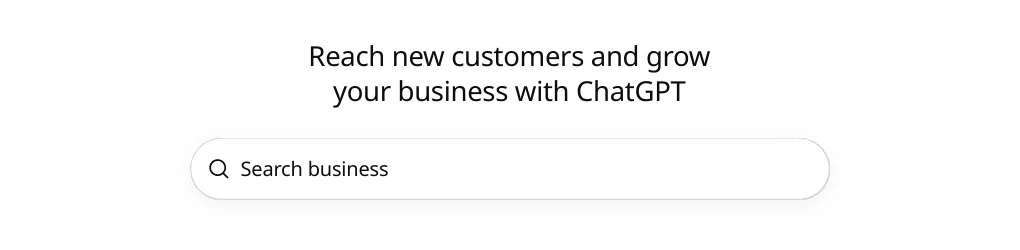 Business Hub home, tested 11 November 2026. The search box is the starting point — there is no separate “claim” button.
Step 2: Search for your business
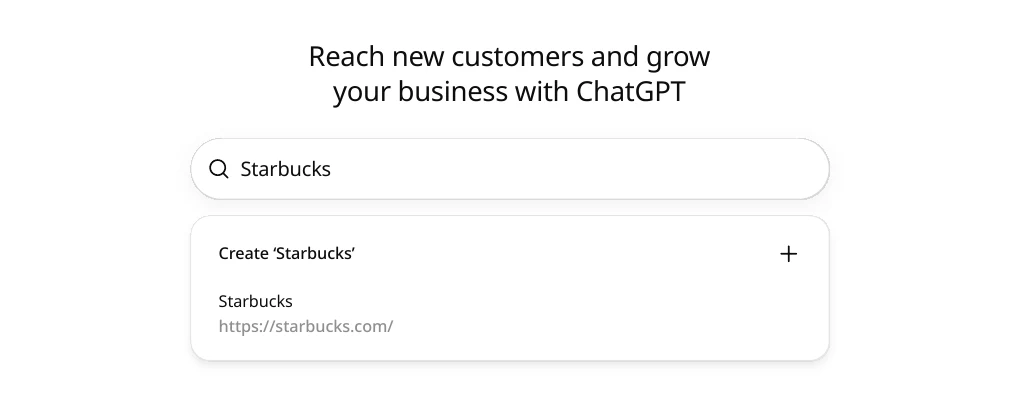
Use the “Search for your business” box and type your business name or website. ChatGPT shows matching listings. In our test, searching “Starbucks” returned one matching business, starbucks.com, plus a “Create ‘Starbucks'” option for adding a listing that is not there. If you run an eligible online business and cannot find yours, you may see an option to add it. Local stores and restaurants can currently claim only an existing US listing — they cannot add a new one.
Step 3: Select the listing and confirm your account
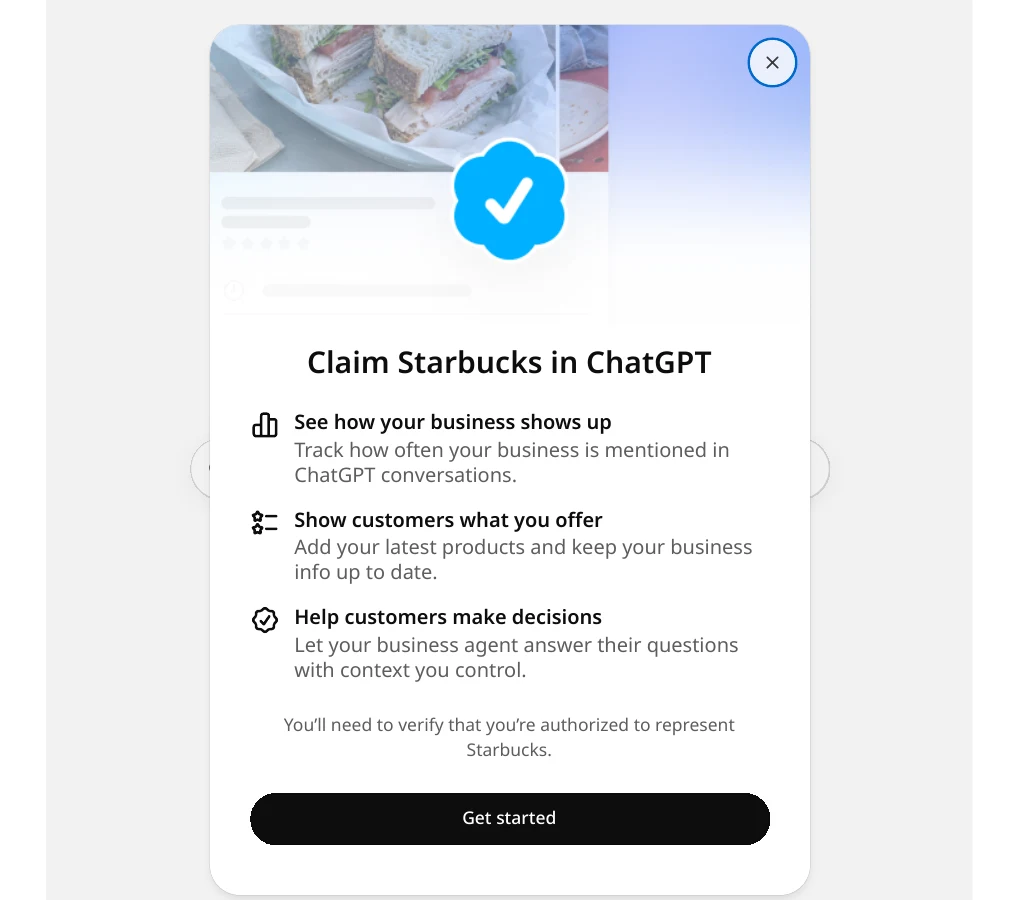
Click the matching listing. ChatGPT shows a claim dialog — “Claim [your business] in ChatGPT” — explaining that claiming lets you manage how it shows in recommendations and conversations, and that you will need to verify you are authorised to represent it. Click “Get started”. ChatGPT then shows the account that will manage the profile and asks you to confirm it. Confirm and continue. (We are not showing a screenshot of this screen because it displays our test account’s email address.)
Step 4: Choose a verification method and follow the prompts
This is where our test found something the official guide does not spell out: the methods offered depend on the business. OpenAI’s help article lists four — business phone, business email, website domain, and Shopify — but for the smaller business we tested, only two appeared: “Business phone — Get a code by text or phone call” and “Website domain — Use DNS or your website to verify that you control [your domain]”. No business-email and no Shopify option appeared for that business. Use whichever methods appear for yours; do not assume all four will be there.
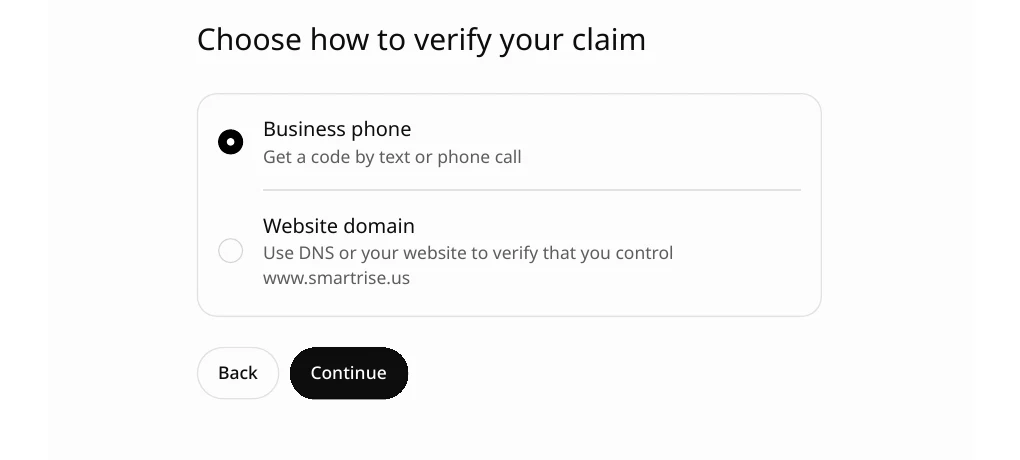
The four methods, as OpenAI’s setup guide describes them:
Business phone. Select Business phone, choose a text message (SMS) or an automated call, select “Get code”, and enter the code sent to the number shown. The number must be the business’s own — the code goes to the number on the listing.
Business email. Select Business email, then “Get code”, and enter the code sent to the email address associated with your business. If you cannot access that inbox, this method will not work for you.
Website domain. Select Website domain, then add the TXT record shown in ChatGPT to your domain’s DNS settings — copy the type, name or host, and value exactly — then return to ChatGPT and select “Verify domain”. One third-party hands-on report gives the record format as openai-business-profile.<your-domain> with the value openai-business-profile=<token>; that format comes from a third-party test, not from OpenAI’s own guide, so treat it as reported and use exactly what ChatGPT shows you.
Shopify store. Select Shopify store, then “Connect Shopify”. Shopify merchants can also connect from the Shopify admin to streamline verification.
Never enter a verification code anywhere except the ChatGPT screen that asked for it, and never request a code for a phone number or inbox you do not control. We stopped on this screen in our test — no code was requested and no verification was submitted — because the test business was not ours to claim.
Step 5: Wait for OpenAI’s review
After you submit verification, OpenAI reviews your claim and emails you its decision, or a request for more information. OpenAI publishes no review-time promise — review time varies — and at least one publisher has reported its own claim sitting in pending. While the claim is under review, you can select “Cancel claim” to cancel the request.
Step 6: Complete Persona identity verification to get the blue check
After your claim is approved, complete identity verification with Persona. You may need a government-issued ID, business registration information, and proof that you are authorised to represent the business. The verified badge — the blue check — appears only after Persona approval. Claiming alone does not give it. If you use Persona to create a new profile, OpenAI’s approval automatically publishes the profile; there is no separate publishing step. We did not reach this screen in our test — Persona comes after claim approval, and our test stopped at verification — so the steps above are from OpenAI’s setup guide, not from a completed Persona check.
After approval: what to do in Business Hub
Once the claim and Persona verification are approved, the profile is yours to manage — and this is where claiming starts to pay for how to use ChatGPT for your business.
Fix the facts first. Update the website, description, category, logo, cover photo, and delivery and return policy. Wrong hours, an old logo, or a dead link are the cheapest fixes in this whole process, and they are the facts ChatGPT may show to customers.
Connect a product feed if you sell online. Upload products with pricing and availability by CSV, hosted feed URL, or Shopify. This is the closest thing to controlling what ChatGPT says about your products — it answers from your feed instead of guessing.
Read the insights, then act on them. The 28-day view shows mentions, website clicks, and discovery topics — the themes in conversations where your website is cited. If a topic keeps appearing, that is what people actually ask about your business. Use it to fix the matching page on your own site, or to add the product or answer that is missing.
Use the Business Agent for customer service — within its limits. If you are an eligible US ecommerce or online-service business, the agent can answer customer questions with context you control, which is a genuine way to use ChatGPT for customer service. It cannot complete purchases, make bookings, or check orders, and it must follow OpenAI’s Business Agents Policy: it must be clear it is AI representing the business, must not pretend to be human or independent, and must not invent offerings, prices, availability, or reviews.
If something goes wrong
“To claim [business], please contact support.” Some listings are locked. In our test, Starbucks — a huge, already-known brand — did not lead to verification options at all. “Get started” opened a screen reading “To claim Starbucks, please contact support. Our team will guide you through next steps.” That matches the help article’s note: “If you see Contact support: Your listing is locked.” Large or already-managed brands go through support, not the self-serve flow.
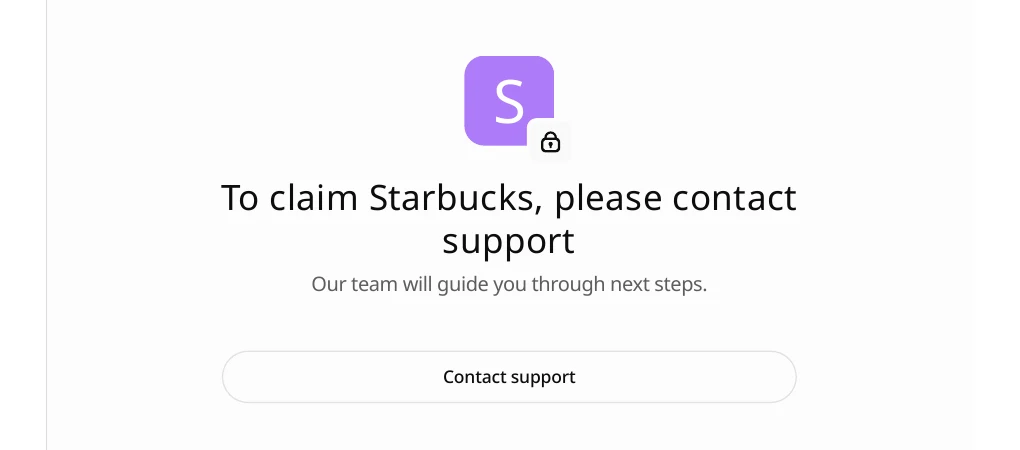
You cannot find your business. If you run an eligible online business, you may see an option to add it. If you run a local store or restaurant, you can currently claim only an existing US listing. If your listing genuinely does not exist and you are outside the US, you may be waiting on the rollout — see the next point.
Your business is outside the US. OpenAI says any eligible business located where ChatGPT is available can claim, but the rollout is gradual. One hands-on report from a non-US business found a “Join waitlist” screen reading “gradually opening access”. In our own test, from a Pakistani account, the Business Hub home screen showed no waitlist and no US-only note — but we did not complete a claim for a non-US business, so we cannot confirm or deny the waitlist from our own test. If you see it, join it; it is the official queue, not a dead end.
Someone already claimed your business. Open the profile, select the more-options menu (•••), then “Dispute ownership”. You will then verify with Persona. Do not create a second listing for the same business — claiming the main brand does not claim its locations either, so each location needs its own route.
The page will not load. Business Hub was slow in our test — a loading skeleton for over 45 seconds before the home screen rendered. Give it time before you assume it is broken.
How ChatGPT finds your business even before you claim
Claiming is new, but ChatGPT has been answering business questions for much longer — from other people’s data. Knowing the sources explains why claiming alone does not control what ChatGPT says, and why the unclaimed listings in Business Hub already have your name, address, and photos on them.
Yelp’s licensed data is the local layer. Yelp licensed its reviews, ratings, photos, and business information to OpenAI for ChatGPT in July 2026 — around 330 million reviews and 8 million-plus listings, non-exclusive, with Yelp branding and links shown. Independent measurement backs up how dominant that source is: a Steady Demand study of 2,880 prompts in August 2026 found Yelp grounded the structured business cards in 95.83% of ChatGPT runs, and a BrightLocal study of about 2 million citations in September 2026 found Yelp in 80% of ChatGPT’s local answers, with Google Business Profile “hardly used”. If you are a local business, your Yelp listing has been shaping ChatGPT’s answers about you for months.
Bing’s index is the search layer. OpenAI’s search help page says ChatGPT search sometimes partners with other search providers, and names Microsoft (Bing) and Shopify. Being indexed by Bing — through Bing Webmaster Tools and Bing Places — is a route into ChatGPT search results. Google is not a disclosed search provider.
OpenAI’s own crawl. To make a website eligible for ChatGPT search, allow OAI-SearchBot to crawl it and confirm your host or CDN allows traffic from OpenAI’s published searchbot IP addresses. Blocking it removes the site from ChatGPT search answers. SmartRiseHQ itself allows ChatGPT’s search crawlers in its robots file while keeping the training crawler closed — the two are separate decisions.
The practical point: claim the profile to control your own facts, keep your Yelp and Bing listings accurate because they already feed ChatGPT, and let OAI-SearchBot crawl your site. Those three together are the real answer to how to get benefit from ChatGPT as a business — the claim is one lever, not the whole machine.
Do not confuse this with ChatGPT Business or custom GPTs
Three different things share similar names, and the search results mix them up constantly. Businesses in ChatGPT is the new claim flow in this guide. ChatGPT Business is the paid team workspace plan (minimum two seats) — it has nothing to do with claiming a listing. And custom GPTs are chatbots you build yourself; before the launch, “build a custom GPT about your business” was the workaround people recommended because there was no claim flow. That workaround is now obsolete for this job — you can create a custom GPT for free, but it does not claim or manage your business listing.
FAQ
Is it free to claim your business in ChatGPT?
OpenAI has published no price for claiming, insights, or Business Agents on any official page. Multiple outlets report it is free at launch and that OpenAI has not ruled out charging later — treat “free at launch” as reported, not official. There is no published ad pricing yet either; sponsored Business Agents are still in a limited alpha.
Do I need ChatGPT Plus to claim my business?
No. A free ChatGPT account can claim an eligible business. You do not need ChatGPT Plus, an Ads account, or an Enterprise agreement. Enterprise customers and advertisers can claim through their OpenAI representative instead.
Will claiming my business make ChatGPT recommend it more often?
OpenAI says no — claiming “doesn’t guarantee increased visibility or give you direct control over ChatGPT’s independent recommendations. Advertising doesn’t influence ChatGPT’s independent answers.” Claiming lets you manage the information ChatGPT sees; the recommendation itself stays independent.
Can I claim a business without a website?
No — at launch, only businesses with a website can claim. If your business has no website, Business Hub is not open to you yet.
Can I claim my business in ChatGPT if I am outside the US?
It depends on the business type. Online businesses can claim where ChatGPT is available, and may see an option to add a listing that is not there. Local stores and restaurants can currently claim only an existing US listing. The rollout is gradual, and at least one non-US business has reported a “Join waitlist” screen.
What if someone else already claimed my business?
Open the profile, select the more-options menu (•••), then “Dispute ownership”, and verify with Persona. Do not create a duplicate listing — each brand is managed separately, and claiming the main brand does not claim its locations.
Sources
Official OpenAI pages, all opened and checked 11 November 2026: Introducing Businesses in ChatGPT (announcement, 10 November 2026); Setting up your business on ChatGPT (Help Center setup guide); Businesses in ChatGPT: Claim Your Business; Searching the web with ChatGPT; Business Agents Policy. Hands-on screens from Business Hub were captured 11 November 2026 in a signed-in ChatGPT account. Yelp data figures are from the Steady Demand study (August 2026) and the BrightLocal study (September 2026), as reported in the research notes.